We've written before about why the core experience moved to the desktop. This post is the other half of that story: not the "why," but the "what"-a screenshot tour of the features you use to get security work done.
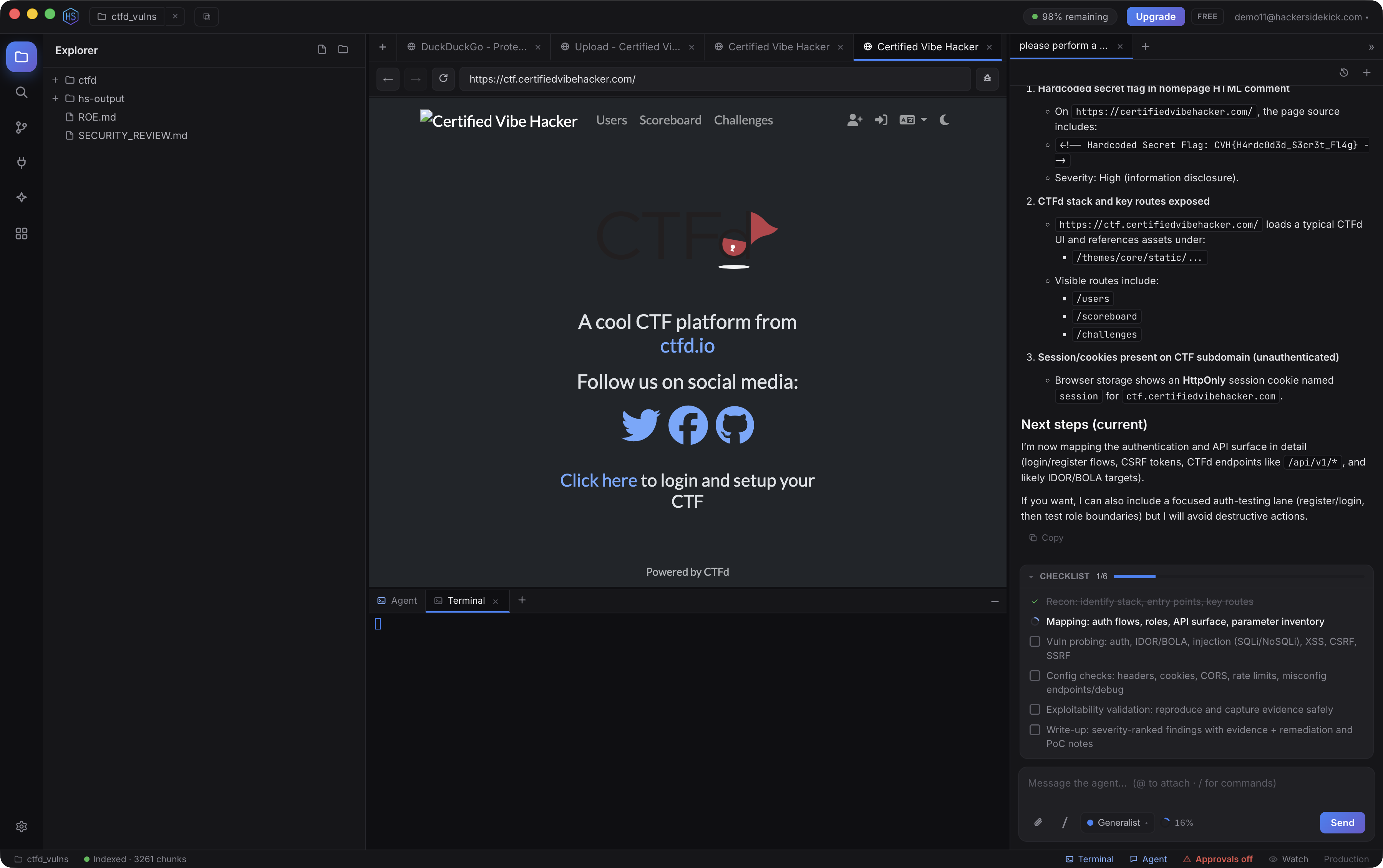
Everything happens inside the folder (workspace) you open. Four panes make up the environment: an Explorer on the left, a center that holds editors and a built-in browser, a terminal along the bottom, and the agent on the right. The activity bar switches the left panel between Explorer, Search, Git, MCP servers, Skills, and Integrations. One window, and the analysis lives next to the execution.
The coreThe agent that does the work
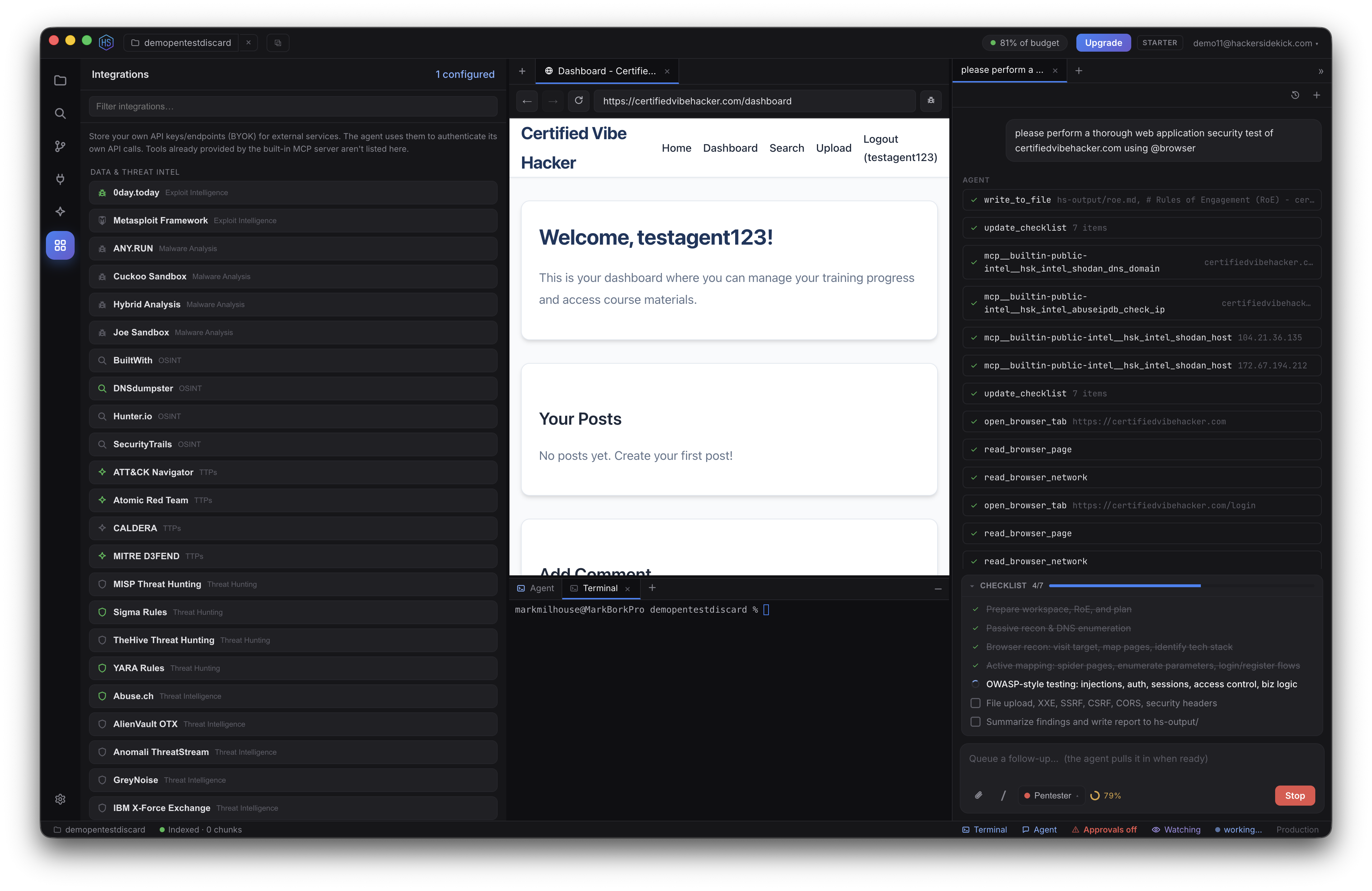
The panel on the right is your agent. You tell it what you're working on and it does the work in your workspace while you watch every step-the text it writes and each tool it runs appear in order, as collapsible rows you can expand to see the exact input and output. Nothing happens off-screen.
It has 41 built-in tools (plus anything you connect over MCP) and runs a native tool-calling loop with context-window management and concurrent fan-out/join-independent tool calls in one turn run together. For multi-step work it keeps a live checklist above the composer so you can see the plan and progress, and when it genuinely needs a decision it asks a question with options rather than guessing. Every question card also offers "Let the agent decide," which hands it the wheel to run autonomously for the rest of that conversation.
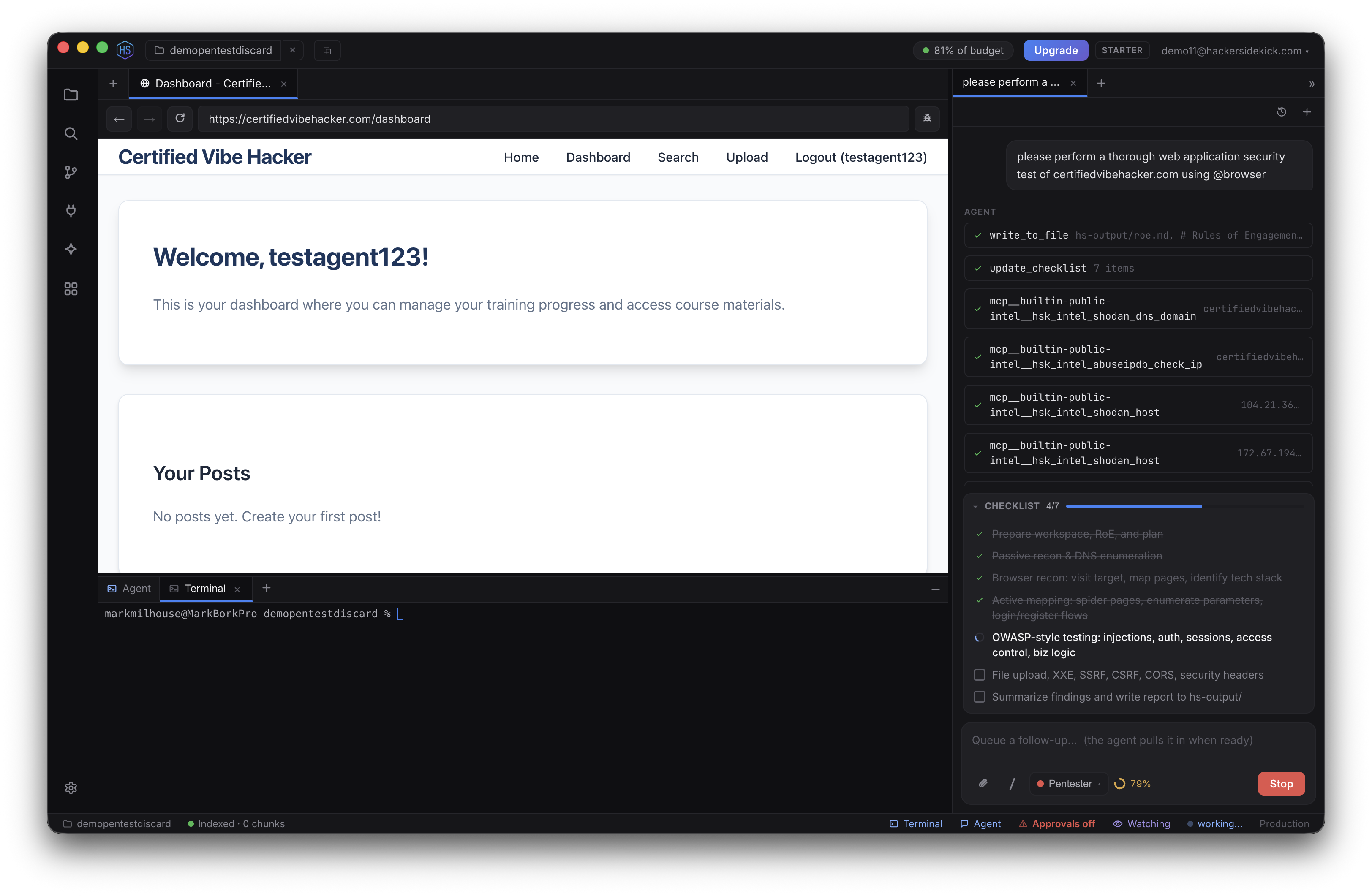
The composer at the bottom is where you steer it. @ attaches context-a file or folder by name, the current browser page (@browser), or a terminal (@terminal); / opens the slash menu to run a Skill, start a new task, or re-index; and you can paste an image straight in for the agent to actually see. Type while it's working and your message is queued as a follow-up, folded in at the next good stopping point.
When there are two or more independent sub-tasks, the agent delegates: read-only sub-agents gather facts without cluttering the main thread, and workers take a bounded job and propose file changes-but a worker's writes land in a scratch area and are shown to you for review-and-merge before anything touches your workspace. Its artifacts-findings, reports, screenshots, downloads-collect under an hs-output/ folder, so every engagement leaves a clean, reviewable trail you own. Past tasks are kept per workspace; open the history menu to search, resume, or delete one with its full transcript intact.
Capable and controllableSecurity modes & approvals
The agent is built to be capable and controllable. Every conversation runs in a security mode-a selector in the composer-that shapes its persona and guardrails: Generalist (default), Pentester, DFIR, Blue Team, and Exploit Dev, plus custom modes you define. Pentester and other offensive modes require a Rules-of-Engagement file in the workspace stating your scope and authorization-a deliberate gate so the agent won't run an engagement against live targets without it. Settings can scaffold an RoE template in one click.
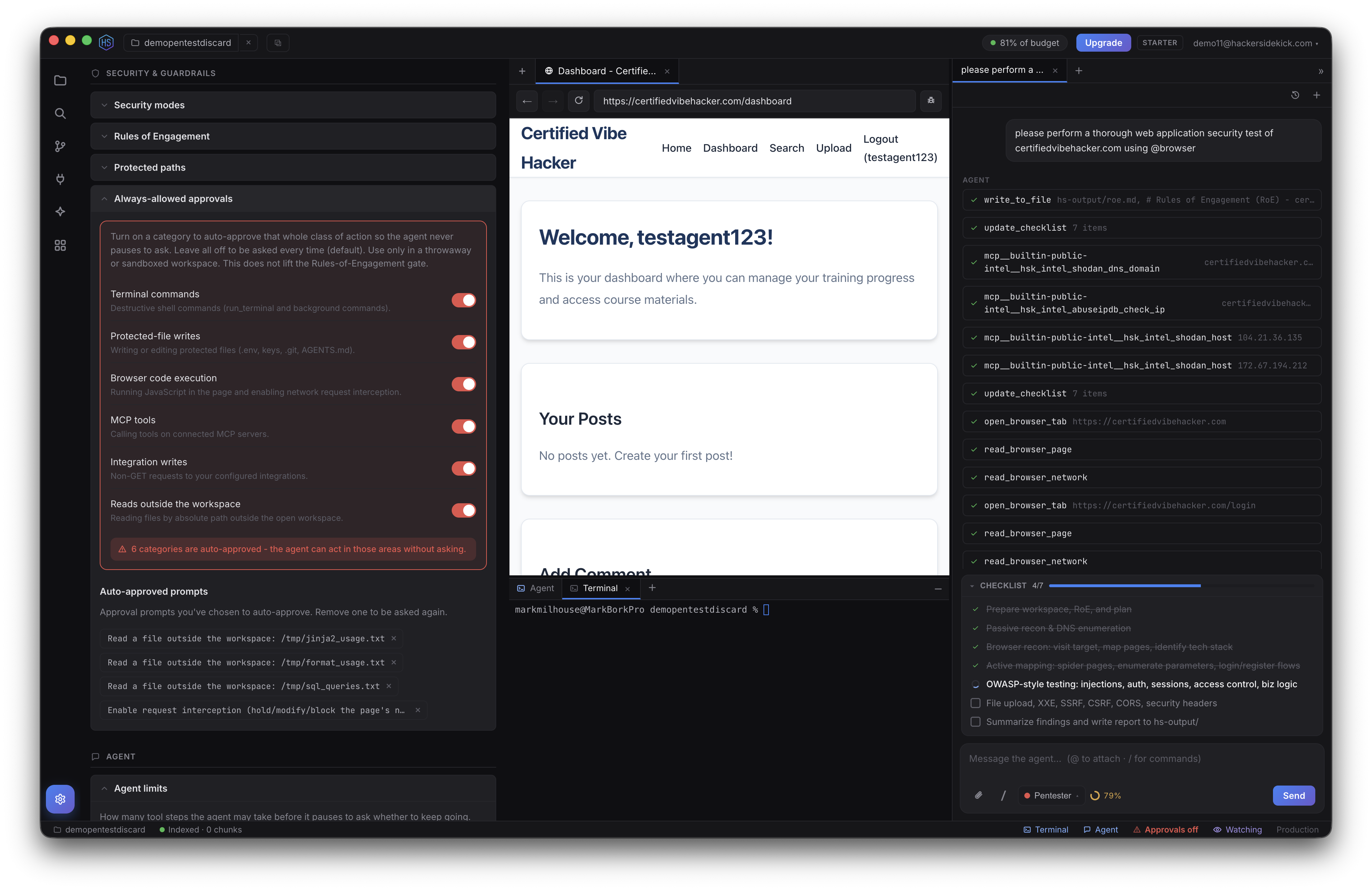
Nothing dangerous happens silently. The agent pauses for approval before destructive terminal commands (rm -rf, sudo, git push --force), writes to protected paths (secrets, keys, .git, and globs you define), running arbitrary browser JavaScript, enabling traffic interception, reading files outside the workspace, and the first use of any MCP tool or integration. Each prompt offers Approve, Deny, or Always allow. If you're in a throwaway lab and want to move fast, you can flip whole categories to auto-approve-clearly flagged so you always know when the agent can act without asking.
Execution surfaceA browser the agent can drive
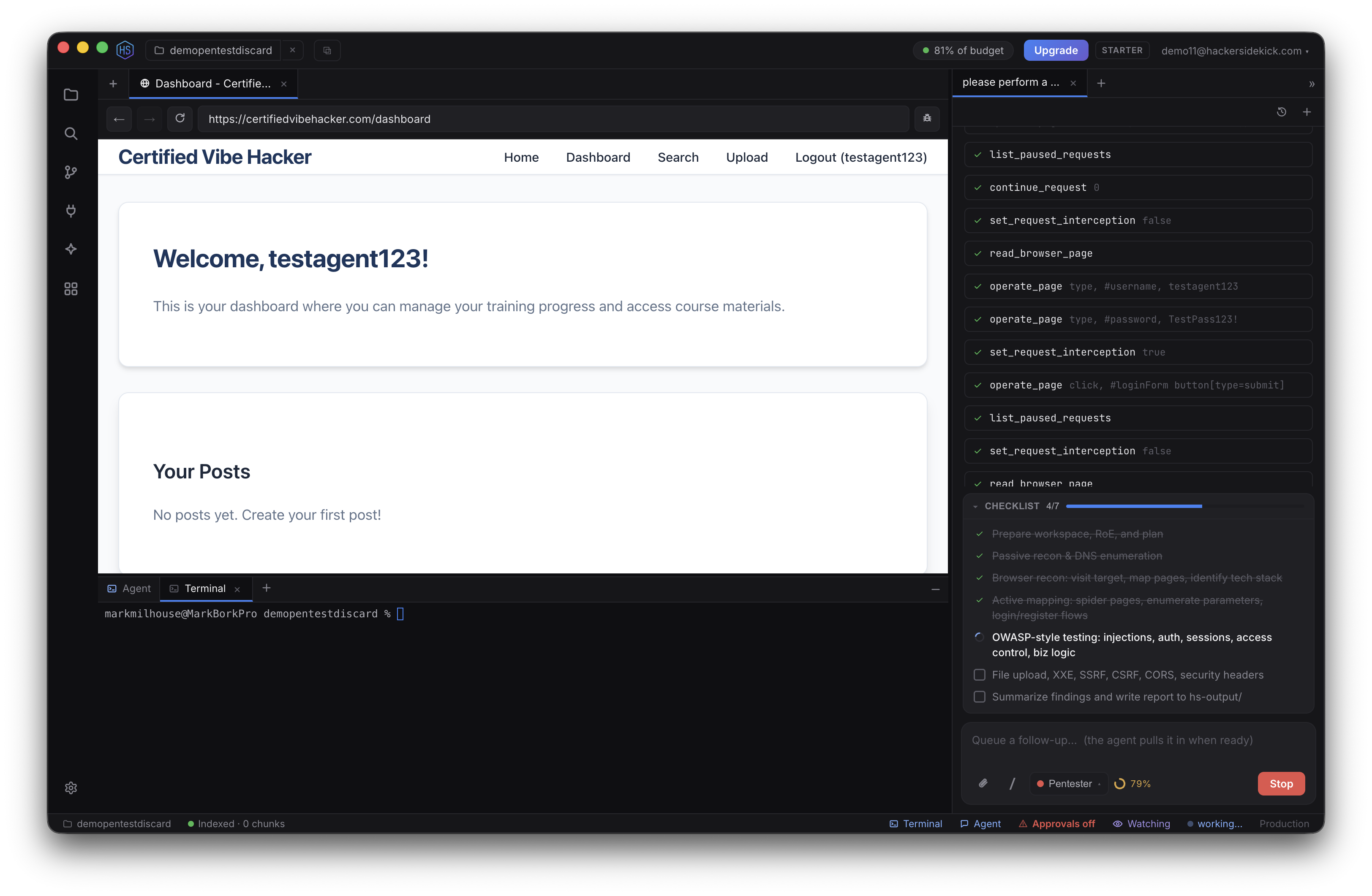
Open a browser tab in the center pane, or just ask the agent to open a page-it's a real, sandboxed Chromium browser inside the app, so the agent can fully see and operate it while you watch. It inspects the rendered DOM, lists network requests and pulls full request/response headers and bodies, and reads storage-localStorage, sessionStorage, cookies (including HttpOnly), and IndexedDB-which is where session tokens and auth state live. It can read WebSocket frames, take screenshots it can see and saves to your workspace, and intercept traffic proxy-style: hold requests, modify them, or block them.
And it can operate the page-click, type, fill, submit, scroll-to walk a real flow, plus run arbitrary JavaScript in a stateful console where variables persist across calls. The two highest-power actions, arbitrary page JS and request interception, are approval-gated.
operate_page and set_request_interception call visible in the thread.Where the work runsVisible terminals, files & search
The terminal at the bottom is a real shell in your workspace. There's an Agent tab where the agent runs its commands visibly-so you always see exactly what it did-plus as many of your own terminals as you like. The agent can open its own dedicated terminals for interactive processes (REPLs, ssh, msfconsole) and drive them. Each terminal records the exact commands typed, so @terminal hands the agent your recent commands and scrollback, and you can select any output and "Add to chat."
The Explorer is a full file manager-multi-select, create, rename, move by dragging, delete to Trash, and it refreshes automatically when files change on disk. The editor renders more than source code: images inline, PDFs as extracted text, SQLite databases as a schema (the agent can run read-only queries), and other binaries as a hexdump plus strings. Search does fast literal-or-regex across the workspace, and a local semantic index lets the agent search your code by meaning, not just keyword. Downloads the agent triggers land under hs-output/ for you to open and inspect.
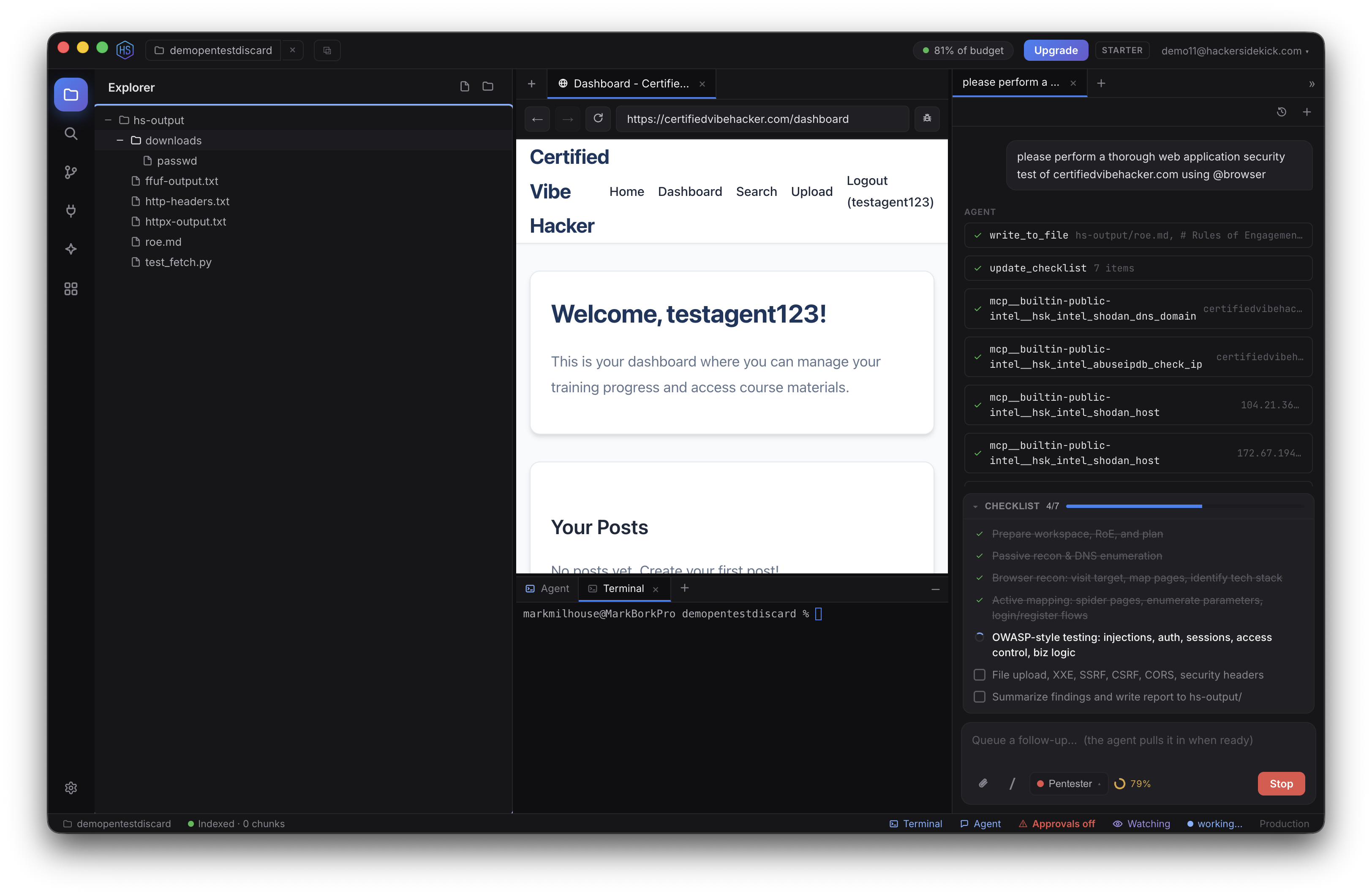
hs-output/ trail: downloaded artifacts, tool output (ffuf, httpx), captured headers, the RoE, and scripts the agent wrote-all in your workspace, all yours.Oversight, not autopilotWatch mode
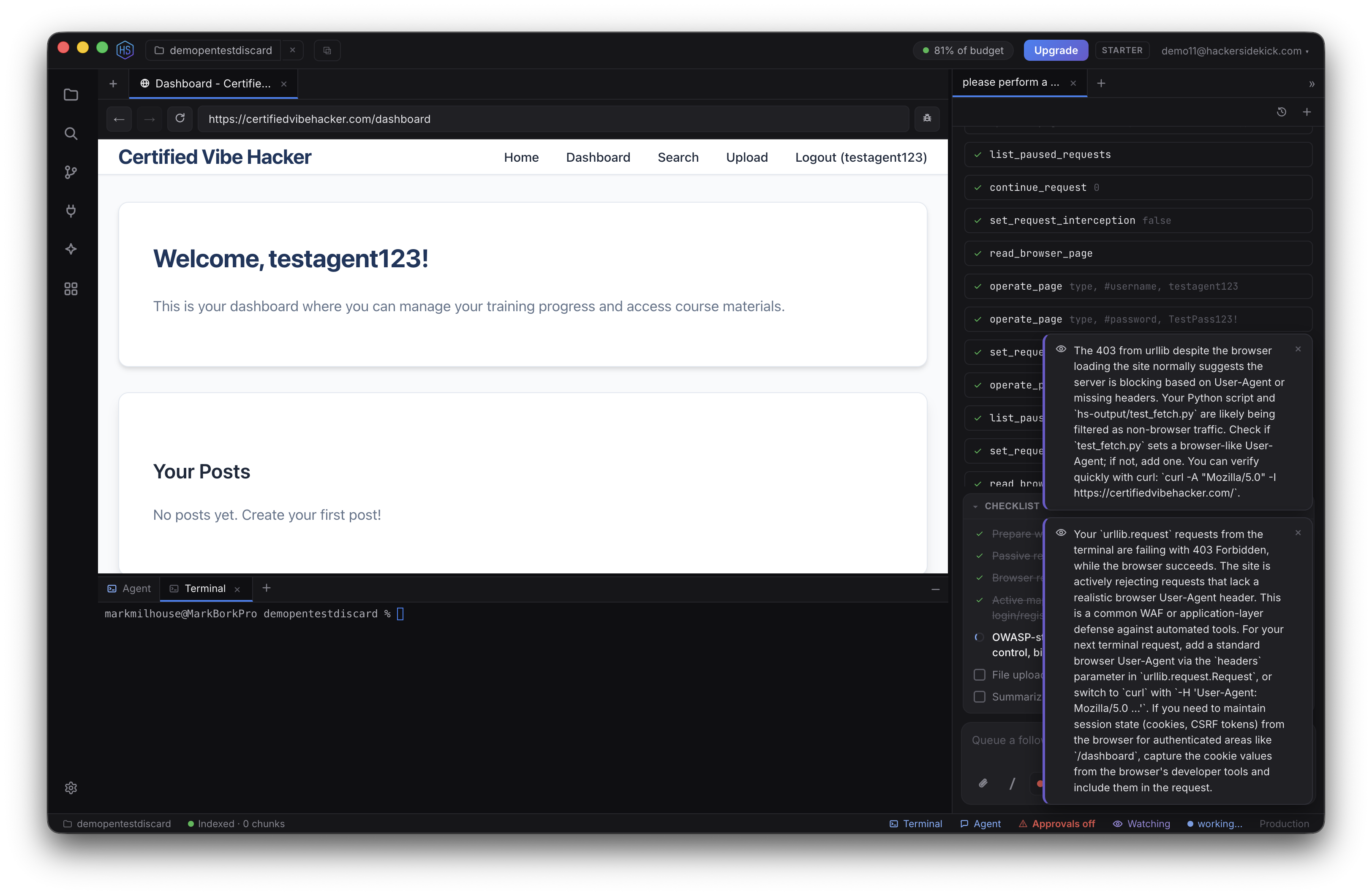
Toggle Watch in the status bar and a separate passive monitor quietly observes your terminal and browser activity, surfacing brief, dismissible advice-a missed step, forgotten cleanup, a scope concern. It only advises; it never acts. The watcher has no tools of its own-it can't run commands, edit files, or touch the browser. Two shortcuts also point it at whatever you're focused on right now: "Explain what I'm looking at" and "Ask the watcher a question."
Reusable playbooksSkills
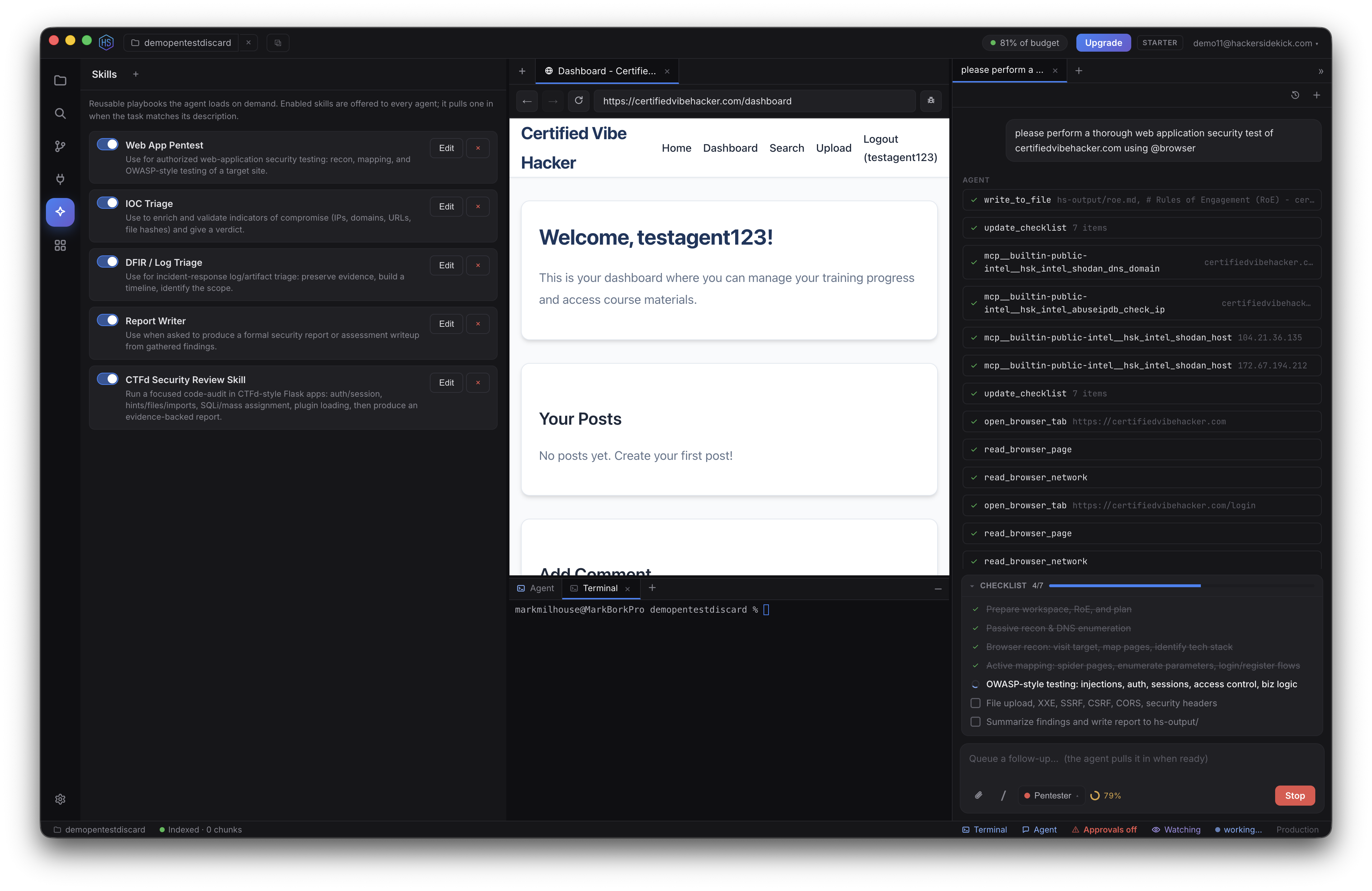
Skills are packaged instructions the agent loads on demand when a task calls for them, instead of carrying every workflow in the prompt all the time. The app ships with starter security playbooks-Web App Pentest, IOC Triage, DFIR / Log Triage, Report Writer, and more-each toggleable and editable. Run one from the composer's / menu, and the agent can author new Skills (offering first) to build up your library over time.
More tools, your toolsMCP servers & integrations
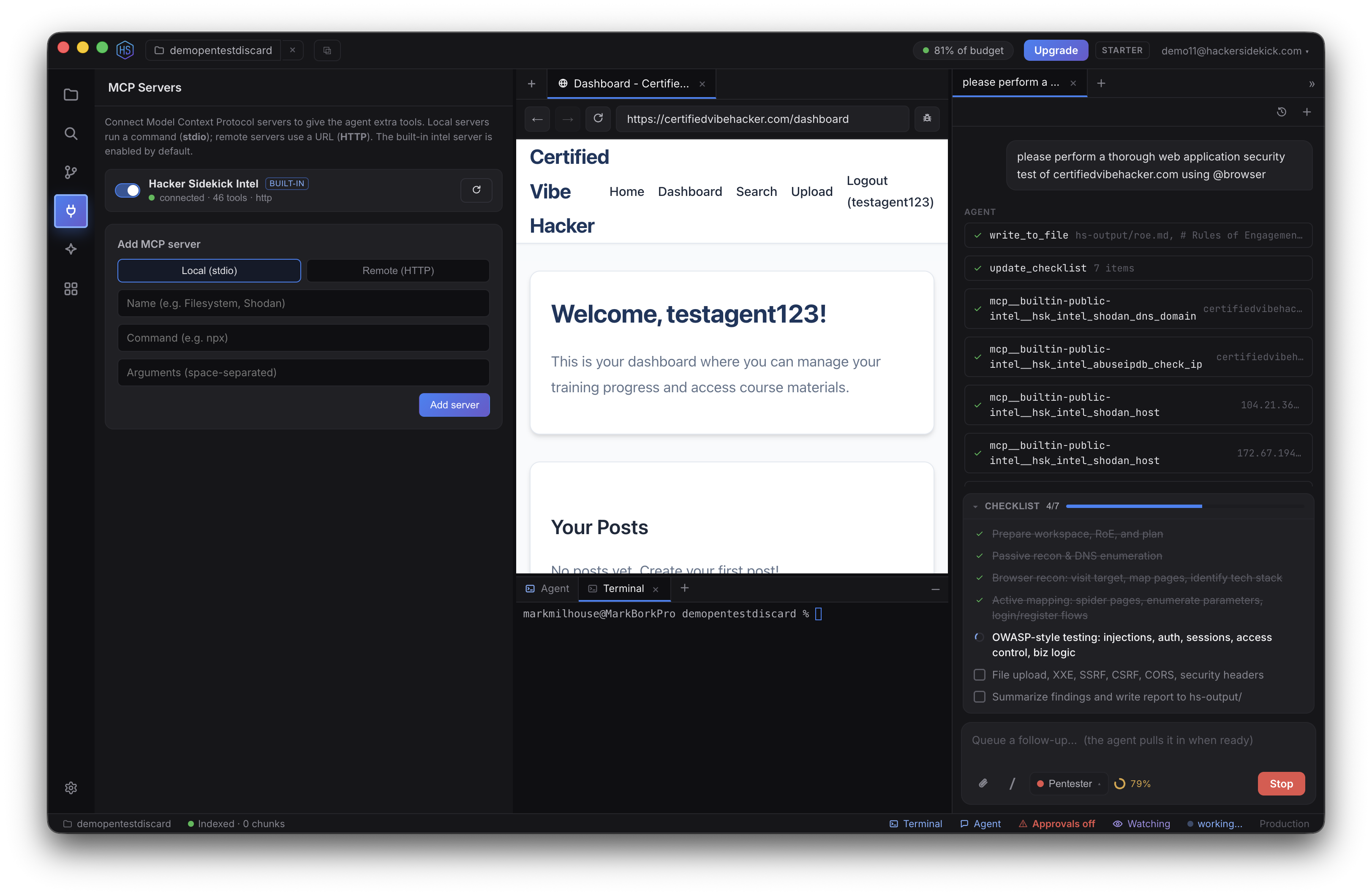
The MCP Servers view connects external tool servers over the Model Context Protocol. A built-in public-intel server ships enabled, giving the agent security-research tools-MITRE ATT&CK, NVD/CVE, VirusTotal, Shodan, Censys, Exploit-DB-out of the box with no key. Add your own servers, either local (stdio) or remote (HTTP); connected tools are namespaced and merged into the agent's tool list, with first-use approval.
The Integrations view is a bring-your-own-key catalog of 58 security and workflow services-exploit databases, malware sandboxes, OSINT and recon sources, TTP libraries, threat-intel platforms, your own EDR/SIEM/SOAR, plus ticketing (Jira, GitHub/GitLab, ServiceNow) and communication (Slack, Discord, Mattermost). You store each service's key once; credentials stay server-side-Hacker Sidekick connects directly to the service and the agent never sees the secret. Ask it to open a Jira ticket, look up a host, or post to Slack; non-GET requests ask first.
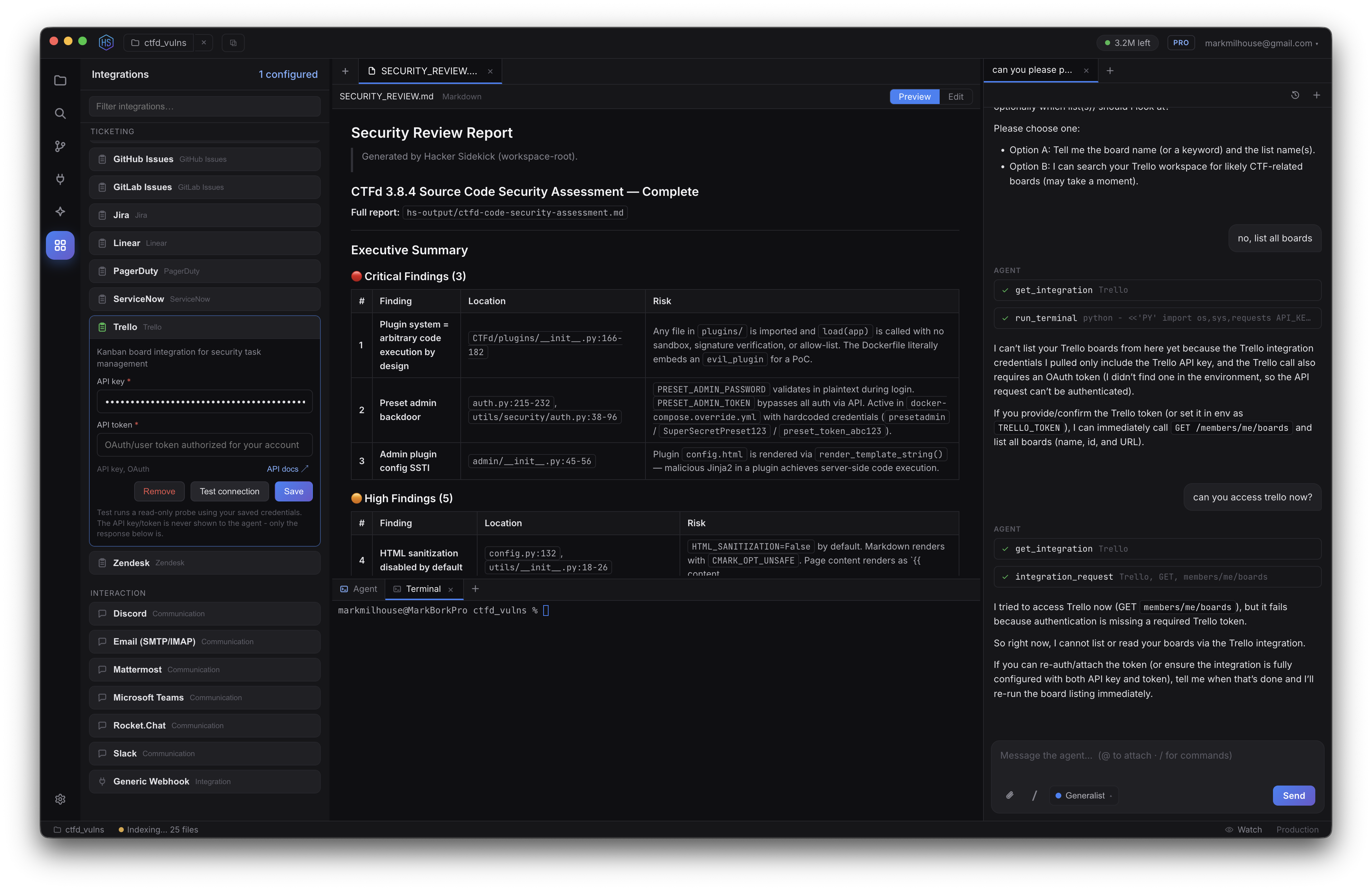
SECURITY_REVIEW.md with severity-ranked findings, and the agent reasoning about what it can and can't reach.Grounded in your machineThe environment survey
At startup, Hacker Sidekick takes stock of the machine-OS, CPU/GPU/memory, installed language runtimes, and the security & dev CLI tools on your PATH-and keeps a catalog you can view in the Environment panel. A compact summary is added to every agent's context so it reaches for what's actually installed instead of guessing (and instead of proposing tools you don't have). It's redaction-aware: machine identifiers like hostname, username, and local IPs are redacted from what the agent sees by default, and the whole feature is a single toggle you can turn off.
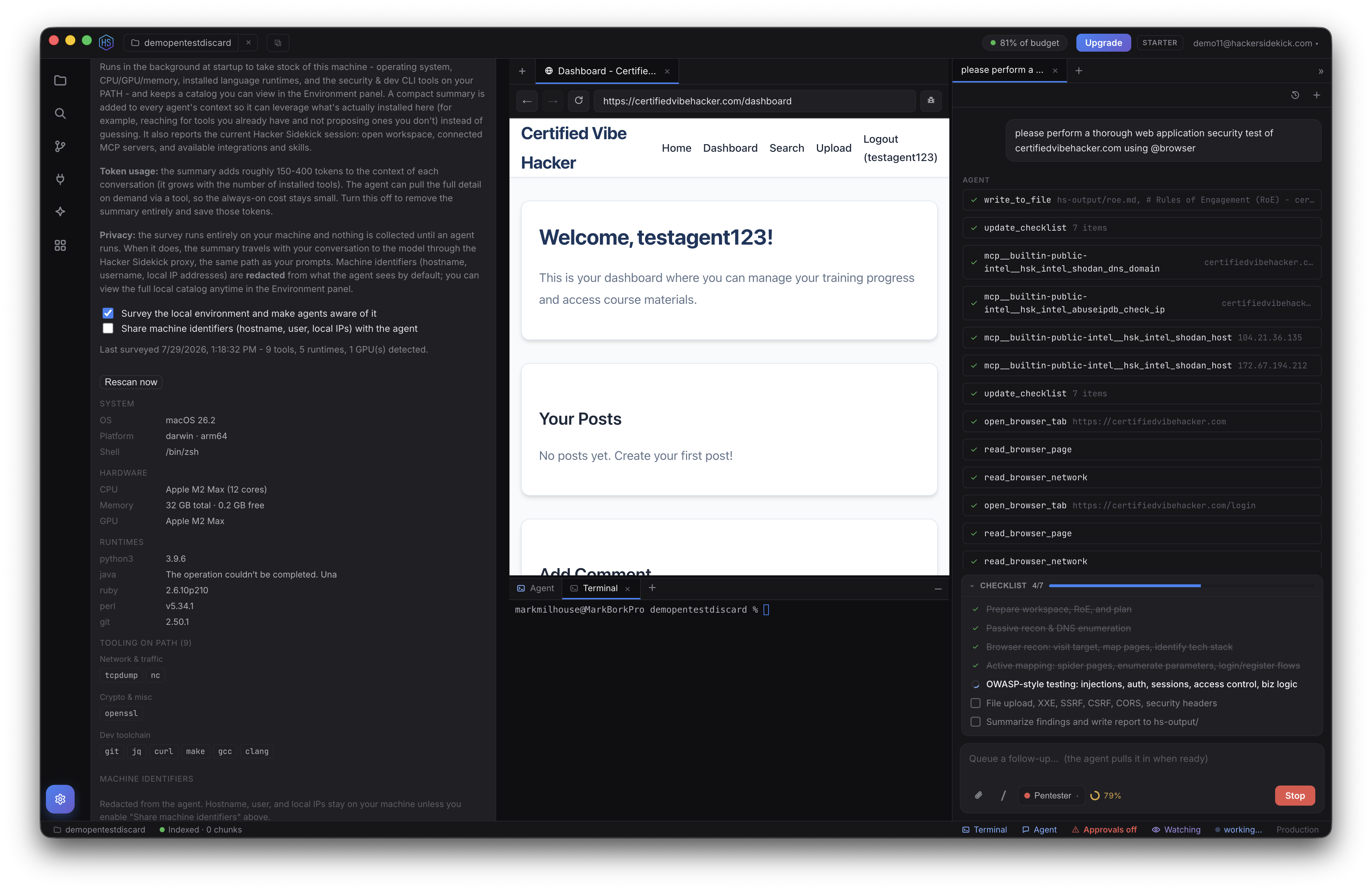
PATH-so the agent reaches for what you already have. Machine identifiers stay on your machine.Make it yoursSettings & shortcuts
Settings gather it all in one place-security modes, Rules of Engagement, protected paths, and always-allowed approvals; agent limits and custom instructions; the environment survey and privacy toggles; and application settings. They're account-global and apply to every window. Every hotkey is listed under Keyboard shortcuts, and most are rebindable-including the Watch-mode and navigation shortcuts-so the environment fits your hands.
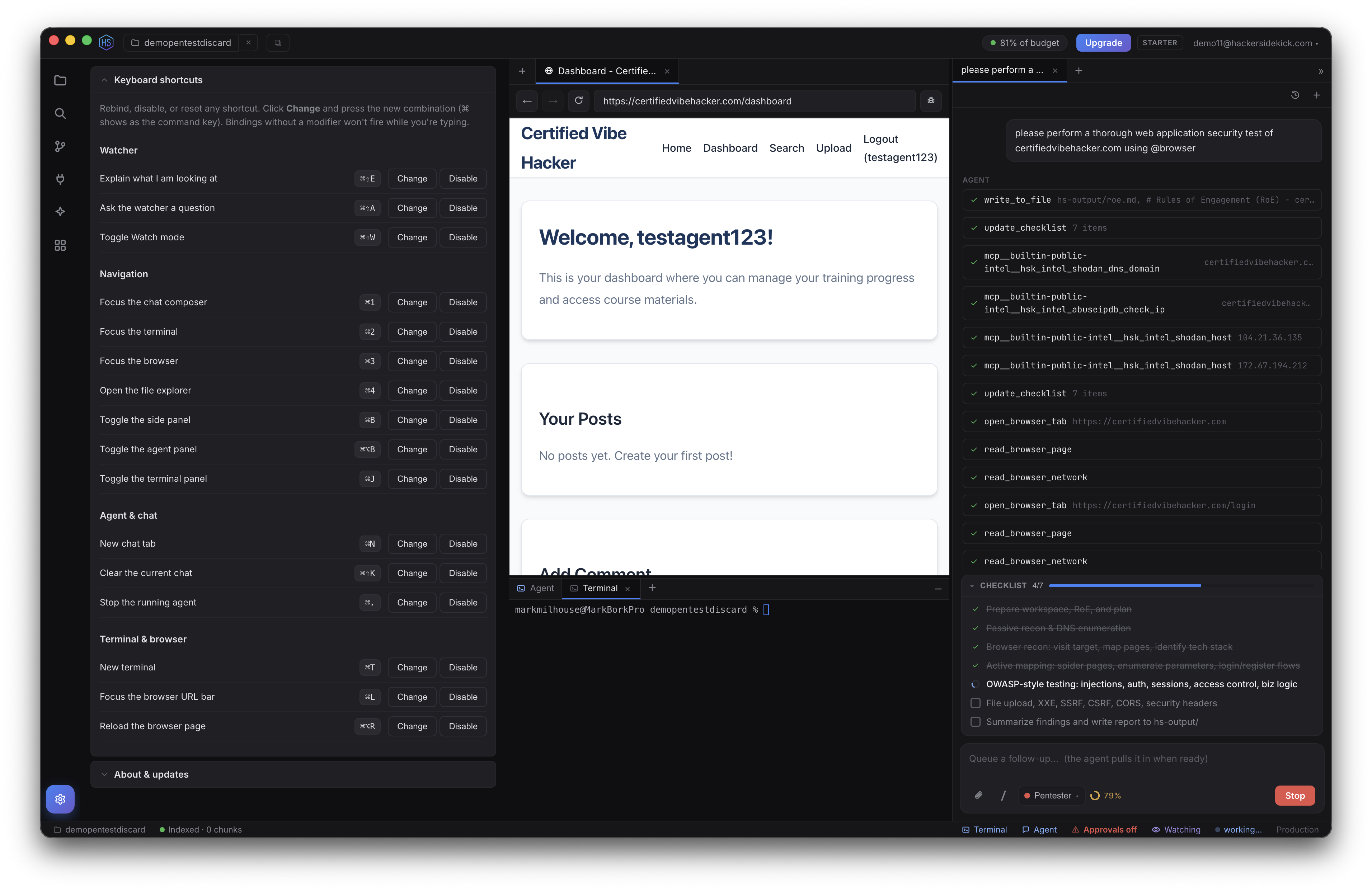
One environment, end to end. The agent plans and asks; modes and approvals keep it in bounds; the browser and terminals give it a real execution surface; Skills, MCP, and integrations extend its reach; Watch mode keeps an eye on things; and the environment survey grounds it in your machine. That's the integrated hacking environment.
Ready to try it?
Windows, macOS (Apple silicon and Intel), and Linux (.deb) builds are on the homepage. Full documentation lives at docs.hackersidekick.com.
- The Hacker Sidekick Team